Convert audio to text for Word
Transcribe your recording and fix the words against the original audio. Sign in to download TXT and open it in Microsoft Word.
From transcript to a Word document
See what the TXT download contains and how you could use the same passage in a Word meeting recap.
Download the sample TXT, open it in Word, then use Save As to create a .docx file.
[02:18] Maya
I’ll send the revised draft on Thursday.

[02:25] Alex
I can send feedback by Friday afternoon.
Product review recap
- Draft
- Maya · Thursday
- Feedback
- Alex · Friday afternoon
“I’ll send the revised draft on Thursday.”Maya · Product review meeting · 02:18
What comes in the TXTPlain text with the speaker and timestamp from the transcript.
What you add in WordHeadings, a list of deadlines and the quote you want to keep.
Keep the source beside the action item
When you turn a spoken commitment into a meeting note, keep the speaker and timestamp so a colleague can find the original line.
“I can send feedback by Friday afternoon.”
- Owner
- Alex
- Due
- Friday afternoon
How it works
Transcribe your recording
Choose a file from your phone or computer, then choose Transcribe file. HearDraft detects the recording language automatically.
Replay and correct the wording
Open the transcript and use the timestamp beside a passage to hear it again. Check names and numbers before you quote them. You can also edit the speaker label.
Download TXT and open it in Word
Sign in and select Export, then Plain text · TXT. In desktop Word, open the TXT file and choose Save As to make a Word Document (.docx).
What to bring into Word
Open the exported TXT file in Word to work it into a document.

Add a checked quote to a Word report
Verify how many people tested the draft. Export TXT, then open it in Word to write up the finding.
We tested the first draft with three readers.
Report paragraph
Bring a voice memo into a draft
Transcribe a dictated edit so you can add it to the right paragraph later.
Put the reference to the old proposal in the second paragraph.
Draft note
Fill in a Word recap template
Use the transcript to pull the delivery date and its condition into your team’s existing template.
Yes. I'll send it Wednesday morning, once Maya confirms the measurements.
Recap entry


Supported files and exports
Open the TXT export in Microsoft Word and save it as DOCX.
- Audio and video uploads
- MP3, M4A, AAC, WAV, FLAC, OGG, Opus, MP4, MOV, WebM, MKV
- Transcript downloads
- TXT, Markdown, CSV, JSON
- Timed subtitles
- SRT, VTT
What you can do with a transcript
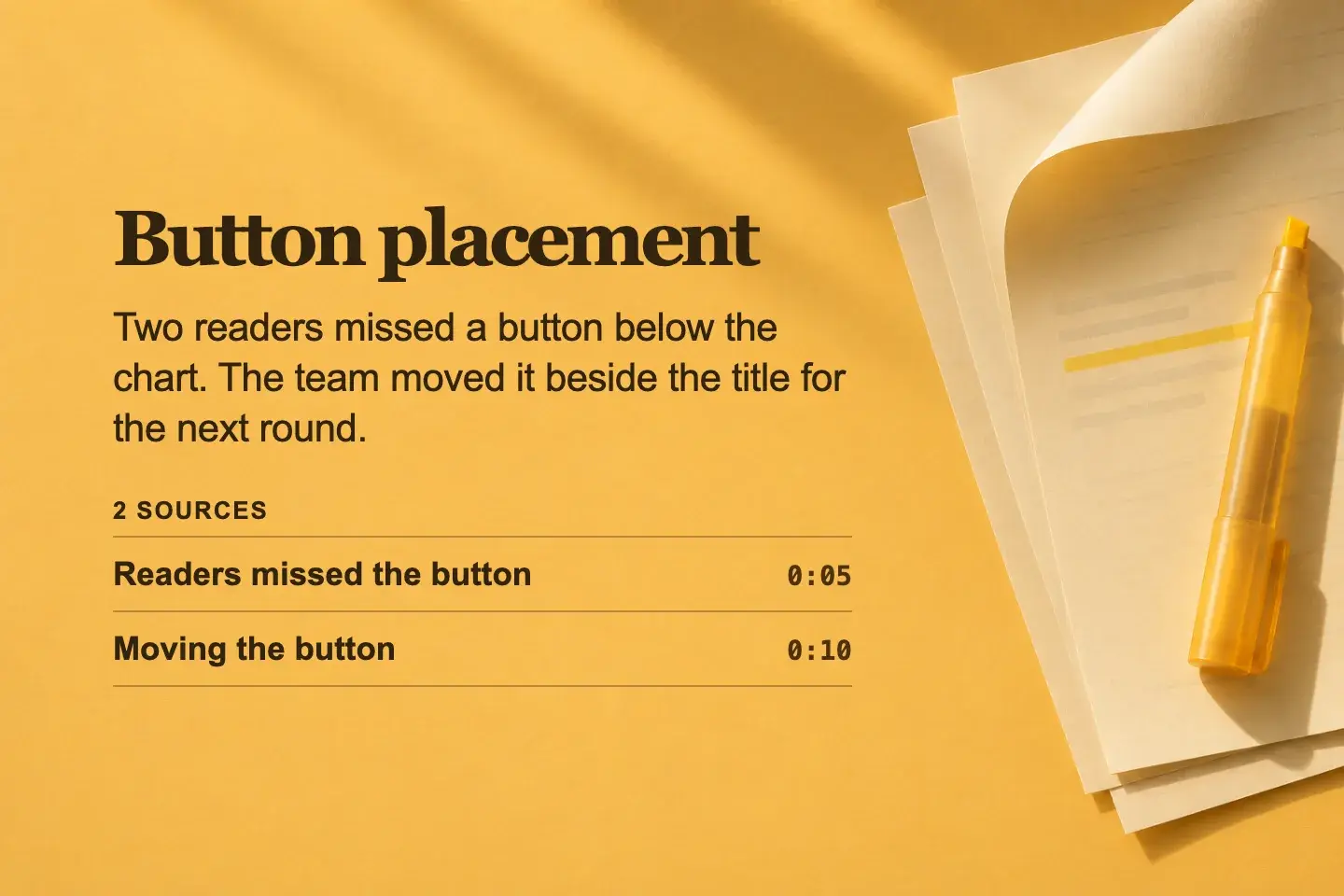
Read the summary and follow its links to the original passages.
User reviews
Illustrative examples
A voice memo became a Word draft
I dictated what to add to an old proposal. I opened the TXT in Word later and copied the instruction into the paragraph I was editing.
Clara MorganWriterThe recap fits our Word template
Our team uses the same Word template each week. I open the TXT, check the owner and deadline, and copy both into the action table.
Ellis FosterProject coordinatorI brought the checked quote into the report
I listened back to the answer, opened the text export in Word and moved the checked quote into the findings section.
Evan SilvaResearch writerThe recording gave me a starting point in Word
I opened the lesson transcript in Word and used the checked instructions to draft a worksheet for the next class.
Tess AroraCurriculum editorThe recording settled the wording
I had written that nobody spotted the button. When I replayed the interview, the speaker said two people missed it. I changed the line in my report.
Adrian ChenUX researcherThe recap got the deadline right
I replayed the agreement before sending the recap. The revised estimate was due Wednesday morning, after the measurements were confirmed.
Nora BennettProject lead

Frequently asked questions
- Does HearDraft export a Word document?
- HearDraft exports plain text (.txt). Open it in desktop Word and save a copy as a Word Document (.docx).
- Which audio formats can I use?
- HearDraft supports MP3, M4A, AAC, WAV, FLAC, OGG and Opus. The free plan limit is 10 minutes and 100 MB per recording.
- Do the timestamps still play audio in Word?
- Word shows timestamps as plain text. Keep the original recording or use the HearDraft editor to replay a passage.
- Can I edit an existing transcript?
- Yes. Upload the TXT or Markdown you already have, make your corrections, then sign in to export the revised text.
- Can I transcribe for free?
- Yes. HearDraft offers free transcription. Sign in to transcribe and export your own files when transcription is available. You can try the examples on this page now.
- What does Unlimited include?
- Starter and Team previews list unlimited transcriptions and up to 10 hours per recording. Checkout is in test mode. Compare plans.
- How large or long can my file be?
- Free includes 3 transcriptions a day, up to 10 minutes and 100 MB per recording.
- Where can I find the refund and cancellation rules?
- See Refunds and cancellation for the current checkout status.