Online transcript editor
Import TXT, Markdown, SRT or VTT and edit your transcript. Correct the wording, speaker labels and cue times before export.
Edit a transcript
Open the interview transcript, correct a speaker label or cue time, and check the change in the exported file.
I start with the transcript. Then I pull out decisions, useful examples, and questions to follow up.
Cue timing
- Original
00:35.00 – 01:01.00- Example edit
00:36.00 – 01:01.00
How it works
Open a transcript
Open the transcript here, or use the workspace to import TXT, Markdown, SRT or VTT. Upload a recording there if you need to transcribe it first.
Make the correction
Edit the words, labels and timestamps. With the original audio, replay the passage before making a factual change.
Export the reviewed copy
Sign in to export your work. Choose a text format for reading or SRT or VTT when valid cue times are present.
What to check before you export
Check a quote against the recording or make sure a caption appears at the right time.

Quote an interview accurately
Check where readers missed the button before you cite the finding in a report.
Two readers missed the button below the chart.
Research note
Check a subtitle cue before export
With the original video open, replay the cue to verify the wording and timing together.
Check the layout before you share a preview.
Reviewed cue


Supported files and exports
Use a transcript for notes and quotes. Choose SRT or VTT when captions need timing.
- Transcript and subtitle imports
- TXT
- Markdown
- SRT
- VTT
- Transcript downloads
- TXT
- Markdown
- CSV
- JSON
- Timed subtitles
- SRT
- VTT
What you can do with a transcript
These examples include the original recording for playback.
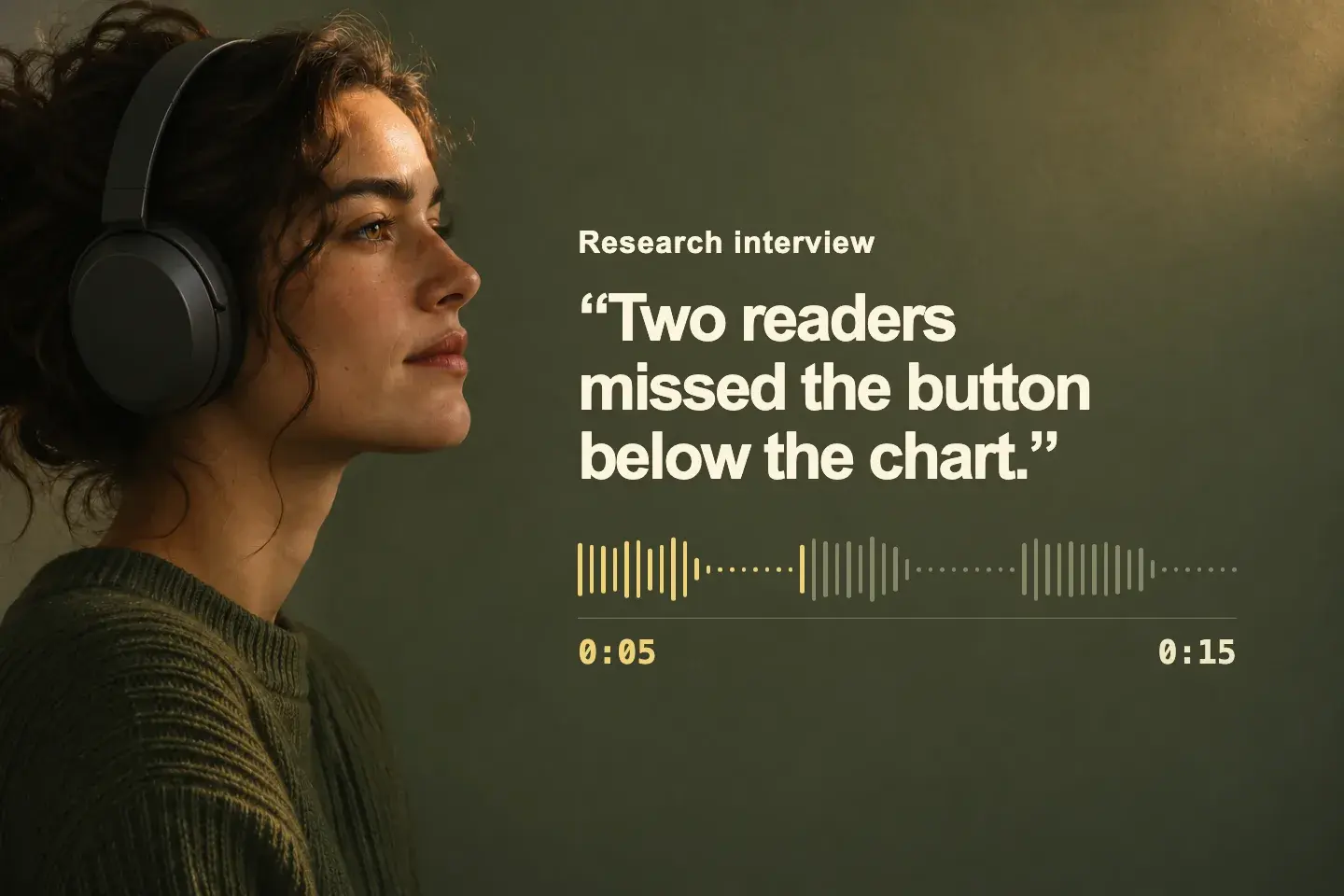
Click a timestamp or highlight to hear that part of the recording.
User reviews
Illustrative examples
I fixed the cue in the SRT I had
I already had an SRT. I corrected the product name and adjusted when its line appeared, then saved the revised subtitle file.
Milo GrantCaption reviewerI could tell who made the point
Two speakers answered the same question. I checked the audio against their labels and fixed the attribution before handing off the transcript.
Hana MorrisInterview producerI kept the source reference with the edit
I corrected the transcript I had, then kept the checked source time beside the quote for a second editor to verify.
Yara ColeCopy editorA late cue was easy to spot
The caption came up after the speaker started. I checked the finished video, adjusted the cue, and exported the updated subtitle file.
Felix ReedPost-production editorWe caught the misheard name in the captions
The transcript misspelled a name. I checked the line in the MP4, fixed it, and exported a fresh caption file.
Alma BrooksVideo producerThe existing text was enough to start
I opened the TXT I already had and cleaned up the wording before exporting the version I could send to the team.
Owen HaleContent editor

Frequently asked questions
- What can I do in the transcript editor?
- Edit the words, speaker labels and timestamps, or download the transcript as a guest. For audio playback alongside a transcript, upload and transcribe a recording.
- Can I edit an existing subtitle file?
- Yes. Import SRT or VTT to edit its text and cue times. Import TXT or Markdown if your source is plain text.
- Why is subtitle export unavailable for my transcript?
- Every passage needs a valid start and end time for SRT or VTT export. Add the cue times or choose a text format for a transcript without timestamps.
- What does Unlimited include?
- Starter and Team previews list unlimited transcriptions and up to 10 hours per recording. Checkout is in test mode. Compare plans.
- How large or long can my file be?
- Free includes 3 transcriptions a day, up to 10 minutes and 100 MB per recording.
- Where can I find the refund and cancellation rules?
- See Refunds and cancellation for the current checkout status.