Transcribe a Facebook video
Create editable text from a Facebook video you have as a file. Check the spoken words before sharing a quote or subtitle.
How it works
Get the recording from its owner
Use the original video file or a copy the owner provides. Confirm that it includes the same audio as the Facebook version.
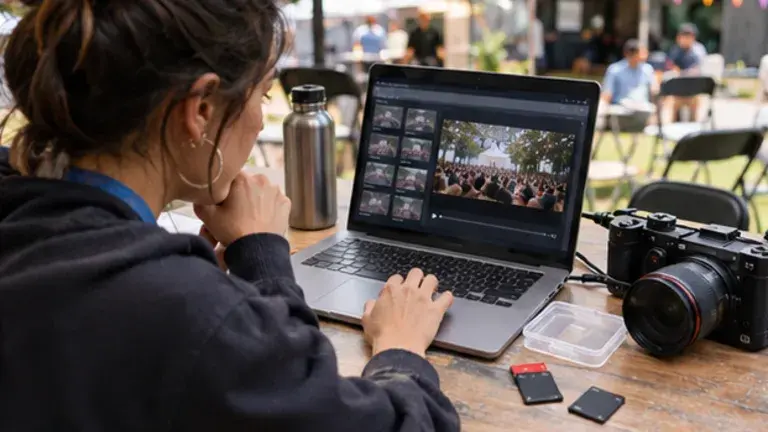
Source video Upload the Facebook video file
Upload the recording and choose the spoken language if you know it.
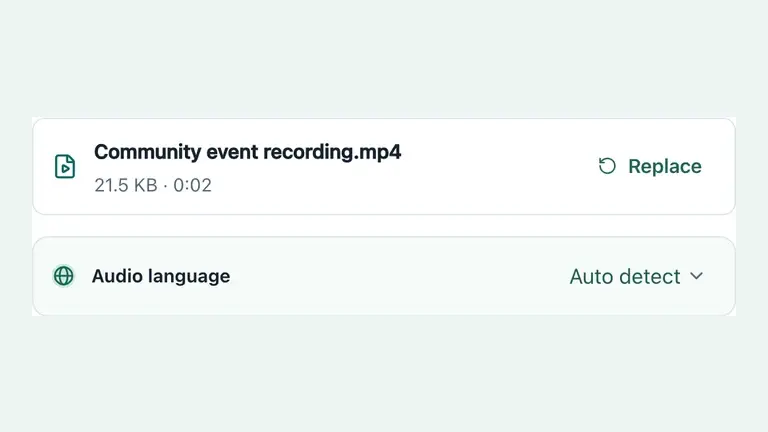
Confirm details in the original audio
Verify names, dates and background speech before you share the edited transcript.
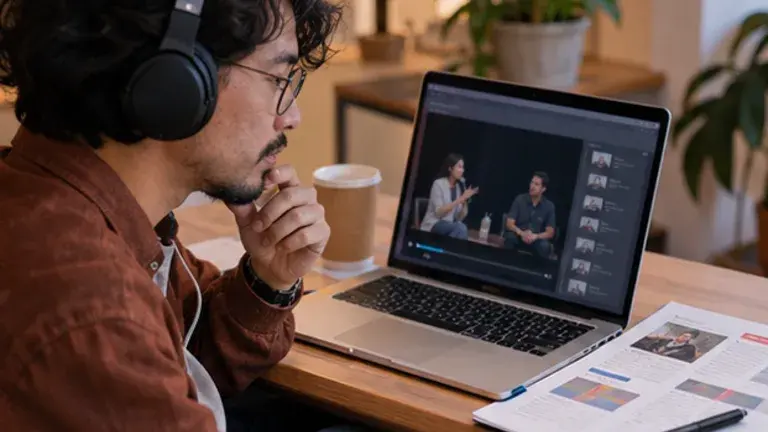
Illustrative example Registration opens at nine on Monday and closes when the room is full.
Review a public update before sharing it in writing
Check both parts of the announcement
Replay the opening time and the capacity condition together before writing a shorter version for your group.
Listen for a correction later in the recording
For a recorded live update, check whether the presenter revises the time or location before the video ends.
Registration opens at nine on Monday and closes when the room is full.
Ways to use the transcript
Document a community announcement
Find the spoken time and location, then confirm both against the recording.
Make a recording easier to read later
Export the reviewed text and keep the original post link alongside it for context.
Supported files and exports
Use a transcript for notes and quotes. Choose SRT or VTT when captions need timing.
- Audio and video uploads
- MP3, M4A, AAC, WAV, FLAC, OGG, Opus, MP4, MOV, WebM, MKV
- Transcript files
- TXT, Markdown, CSV, JSON
- Timed subtitle files
- SRT, VTT
What you can do with a transcript
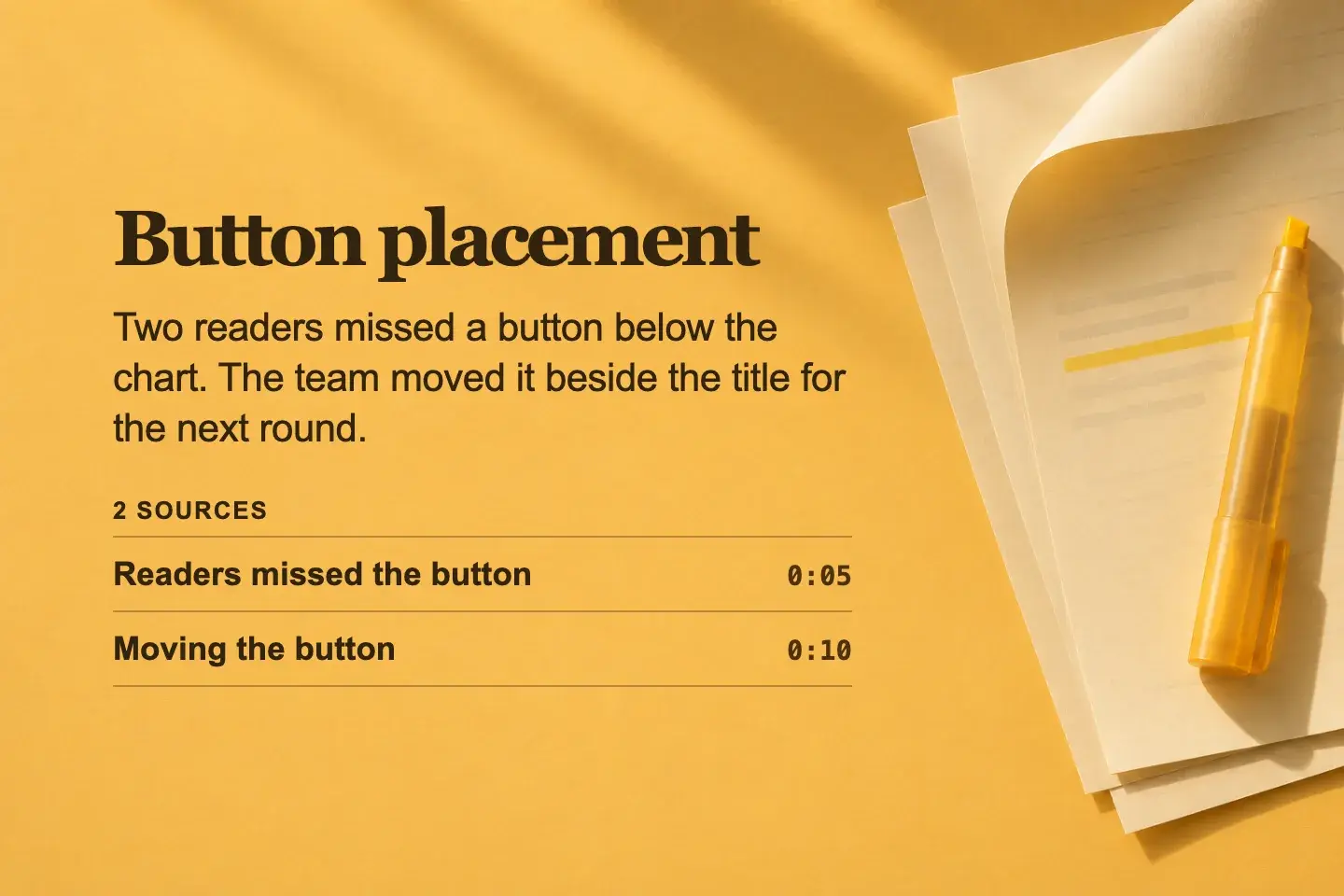
Read the summary and follow its links to the original passages.
User reviews
Illustrative examples
The captions match the final cut
We trimmed the intro before publishing. I transcribed the final cut, checked when the first line starts, then imported the SRT into my video editor.
Mina ParkVideo editorThe handout follows the lesson
I used the paper-folding steps from the class video for a handout. Replaying each step helped me put the instructions in the order I taught them.
Leila HassanTeacherThe walkthrough became release notes
The person recording the demo said where the preview link should go. I replayed that line and added the checked instruction to the release notes.
Rina PatelProduct specialistI could quote the speaker in context
The speaker pointed at the chart mid-sentence. I watched that part again before quoting the line in our article.
Ren WalkerEditorial assistantWe caught the misheard name in the captions
The transcript misspelled a name. I checked the line in the MP4, fixed it, and exported a fresh caption file.
Alma BrooksVideo producerI had captions ready for the web player
I checked the cue timing in the walkthrough and used the VTT in our player. The next person had the plain transcript for the help article.
Ivy RomeroWeb producer

Frequently asked questions
- Can I transcribe a private Facebook video?
- Ask the owner for a file you can use. HearDraft works from the file you upload.
- Will the transcript include comments on the post?
- It contains the speech in the uploaded video. If you need a comment for context, copy it separately from the post.
- Can I transcribe a Facebook Live after it ends?
- Upload a recording of the finished broadcast that you can use. Review the transcript against that saved video.
- What does Unlimited include?
- Starter and Team previews list unlimited transcriptions and up to 10 hours per recording. Checkout is in test mode. Compare plans.
- How large or long can my file be?
- Free includes 3 transcriptions a day, up to 10 minutes and 100 MB per recording.
- Where can I find the refund and cancellation rules?
- See Refunds and cancellation for the current checkout status.