How do you export an M4A file from Apple Voice Memos?
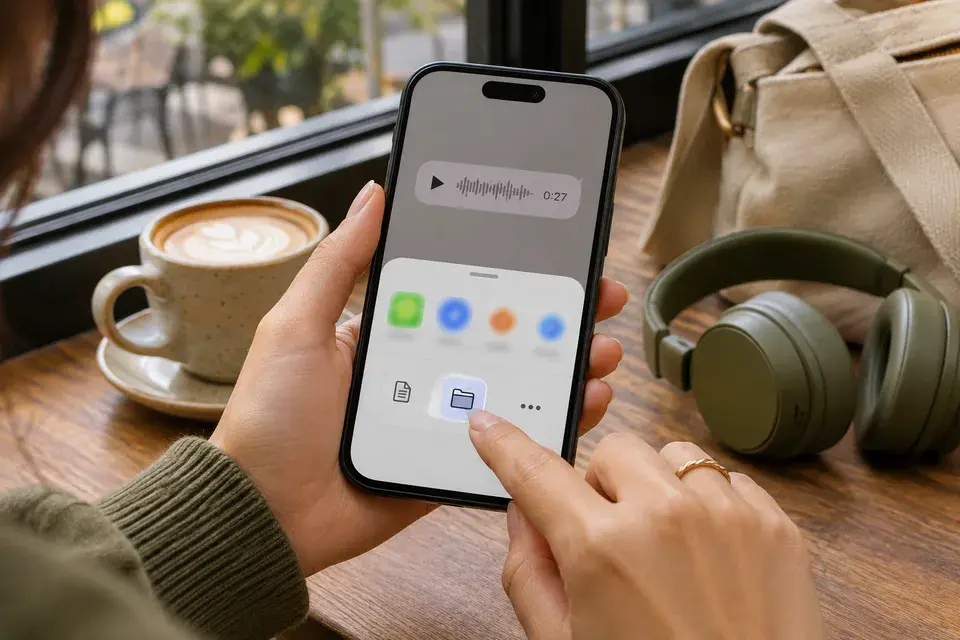
Use the Share sheet in Voice Memos to Save to Files on iPhone or AirDrop directly to Mac—you do not need to convert M4A to MP3 first.
Open Apple Voice Memos, tap the recording you want, tap the More (`...`) button, and choose Share. On iPhone or iPad, choose Save to Files so Safari or Chrome can pick the `.m4a` directly from your browser uploader. On Mac, drag the recording from the Voice Memos app onto your Desktop.
Skipping extra MP3 re-encoding keeps the original AAC audio intact and saves time.
What is the cleanest path from M4A recording to Microsoft Word (.docx)?
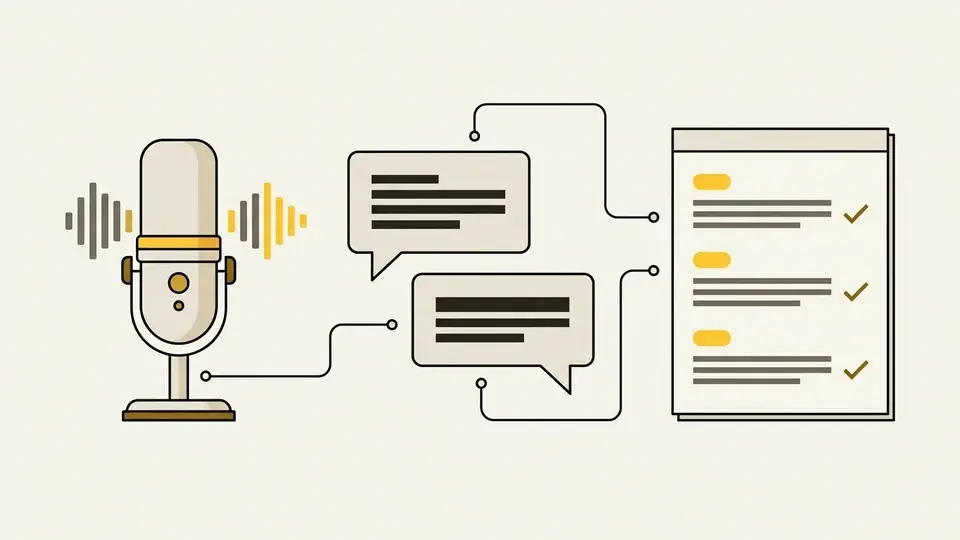
Transcribe the M4A directly, verify proper nouns against playback, export TXT (or Markdown), then apply headings and Save As `.docx` in desktop Word.
The table below clarifies what happens inside HearDraft versus what belongs in Microsoft Word so your layout stays clean.
| Step | Where It Happens | Concrete Action |
|---|---|---|
| 1. Export audio | Apple Voice Memos | Share → Save to Files (or AirDrop to Mac) as `.m4a` |
| 2. Transcribe | HearDraft (`/tools/m4a-to-text`) | Upload the `.m4a` (free: up to 10 min / 100 MB; paid: up to 10 hours) |
| 3. Verify wording | HearDraft Editor | Click timestamps to replay names, dates, and numbers; edit speaker labels if multiple voices |
| 4. Download text | HearDraft Export | Sign in and export Plain Text (`.txt`) or Markdown (`.md`) |
| 5. Format & save DOCX | Microsoft Word | Open the `.txt` file in Word, add headings or action items, and choose Save As → Word Document (`.docx`) |
What quick recording habits make Voice Memos easier to transcribe?
Hold the phone microphone steady 15–25 cm away, avoid setting it directly on a vibrating table, and say speaker names briefly at the start of an interview.
Most transcription errors on phone memos come from wind, pocket rustling, or someone sitting three meters across a loud café. Even when background noise sneaks in, keeping the original audio linked in HearDraft lets you double-check a fuzzy word in two seconds.
Frequently asked questions
- Do I need to convert an iPhone M4A file to MP3 before uploading?
- No. HearDraft accepts M4A uploads natively alongside MP3, WAV, AAC, FLAC, OGG, and Opus.
- Does HearDraft export a .docx file directly?
- HearDraft exports Plain Text (.txt), Markdown (.md), CSV, JSON, SRT, and VTT. Open the exported TXT file in Microsoft Word and choose Save As to create a .docx document.
- Do timestamps still play audio after I move the text into Word?
- No. Inside Word, timestamps are plain text references. Keep the recording in your HearDraft workspace whenever you want clickable audio playback.