Should you upload Zoom’s M4A audio file or the full MP4 video?
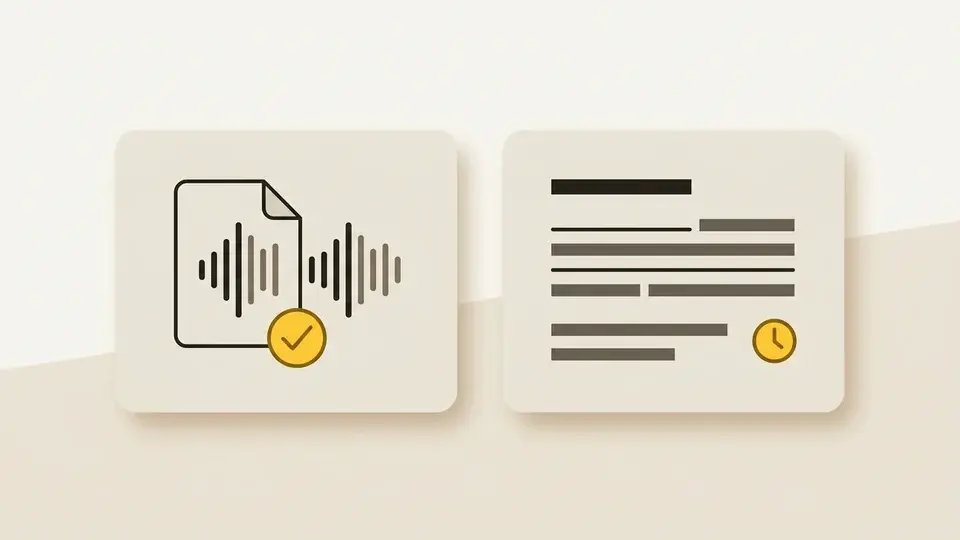
Upload the `.m4a` audio file when you only need a meeting transcript and summary—it is often 10x smaller than the MP4 and uploads in seconds.
Zoom saves both `audio_only.m4a` and the full `.mp4` video in your local recording folder (and in the Zoom Web Portal under Recordings). Choose the `.mp4` when you also want to generate video subtitles (SRT/VTT) or watch who shared a slide while speaking.
| Need | Zoom Built-In Transcript | HearDraft Workspace (MP4 / M4A Upload) |
|---|---|---|
| Works on local recordings? | Cloud recordings on eligible Zoom plans only | Yes — works with both local and cloud Zoom files |
| Edit & rename speakers | Basic VTT edit inside Zoom portal | Full passage editing, speaker rename, undo/redo, and autosave |
| Verify decisions quickly | Search text in Zoom player | Summary + clickable chapter timestamps that jump straight to the exact line |
| Export options | VTT caption file | TXT, Markdown, CSV, JSON, SRT, and VTT |
How do you confirm action items and deadlines before sending the meeting recap?
Open the Summary view to spot proposed tasks, then click the timestamp next to each decision to verify whether the team actually agreed or only discussed it as an option.
Automated meeting notes frequently promote a tentative idea ("we could try shipping Thursday") into a firm commitment. Replaying five seconds of source audio confirms who accepted ownership, what condition was attached, and the final due date.
Group recurring calls (such as weekly client syncs) inside one HearDraft Project so previous transcripts stay one click away when a decision carries over.

Frequently asked questions
- Can I upload a 2-hour Zoom recording to HearDraft?
- Active paid Starter and Team plans support recordings up to 10 hours long (note the audio-only Zoom M4A stays well under the file size ceiling). Free accounts support up to 10 minutes and 100 MB per recording, 3 times per day.
- Does HearDraft join my live Zoom meetings automatically?
- No. HearDraft is a file-based transcription workspace—you record with Zoom’s native controls and upload only the files you want transcribed.
- Can I get both a full transcript and a summary from one Zoom upload?
- Yes. After transcription finishes, switch between the Transcript tab and the Summary view to read key points and replay chapter timestamps.