Find or create an Apple Podcasts transcript
Look for the transcript in Apple Podcasts. If you have the episode audio file, create a separate editable transcript for your own review.
How it works
Look for the transcript in Apple Podcasts
On iPhone, play the episode in Apple Podcasts, open Now Playing and tap the Transcript button when available. You can also check the episode details for a Transcripts section.

Source recording Upload audio for an editable copy
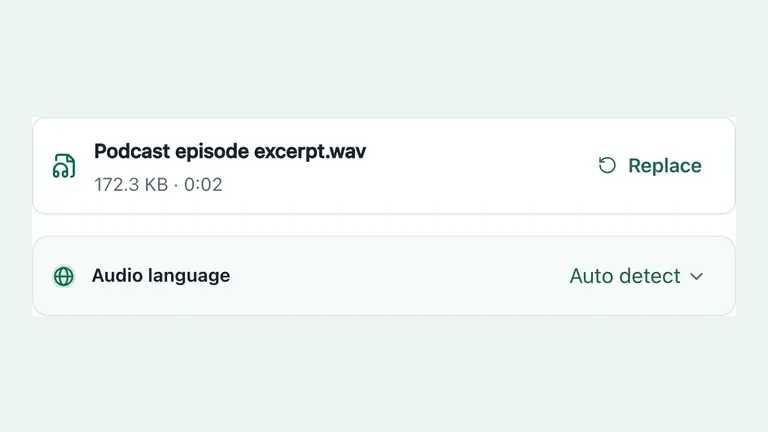
If you need your own editable copy, upload the original episode file or a copy the publisher provides for download.
Check the wording at the original time
Check guest names, book titles and quotations against the episode before using them in your notes.

Illustrative example At 12:18, the guest describes why the first workshop was limited to ten people.
Keep a reference to the moment you want to cite
Use the episode’s transcript to find a passage
When the transcript is available in Apple Podcasts, search for a word you remember, then tap the passage to hear it in the episode.
Keep the episode time with the quote
A guest’s explanation at 12:18 can be useful on its own. Record the episode title and timestamp with your checked quote.
At 12:18, the guest describes why the first workshop was limited to ten people.
Ways to use the transcript
Follow up on an episode reference
Write down the book title and the time the guest mentioned it.
Prepare an accessible reading copy
If you publish the show and have the audio, transcribe the episode file and check names and references before sharing the text.
Supported files and exports
Use a transcript for notes and quotes. Choose SRT or VTT when captions need timing.
- Audio and video uploads
- MP3, M4A, AAC, WAV, FLAC, OGG, Opus, MP4, MOV, WebM, MKV
- Transcript files
- TXT, Markdown, CSV, JSON
- Timed subtitle files
- SRT, VTT
What you can do with a transcript
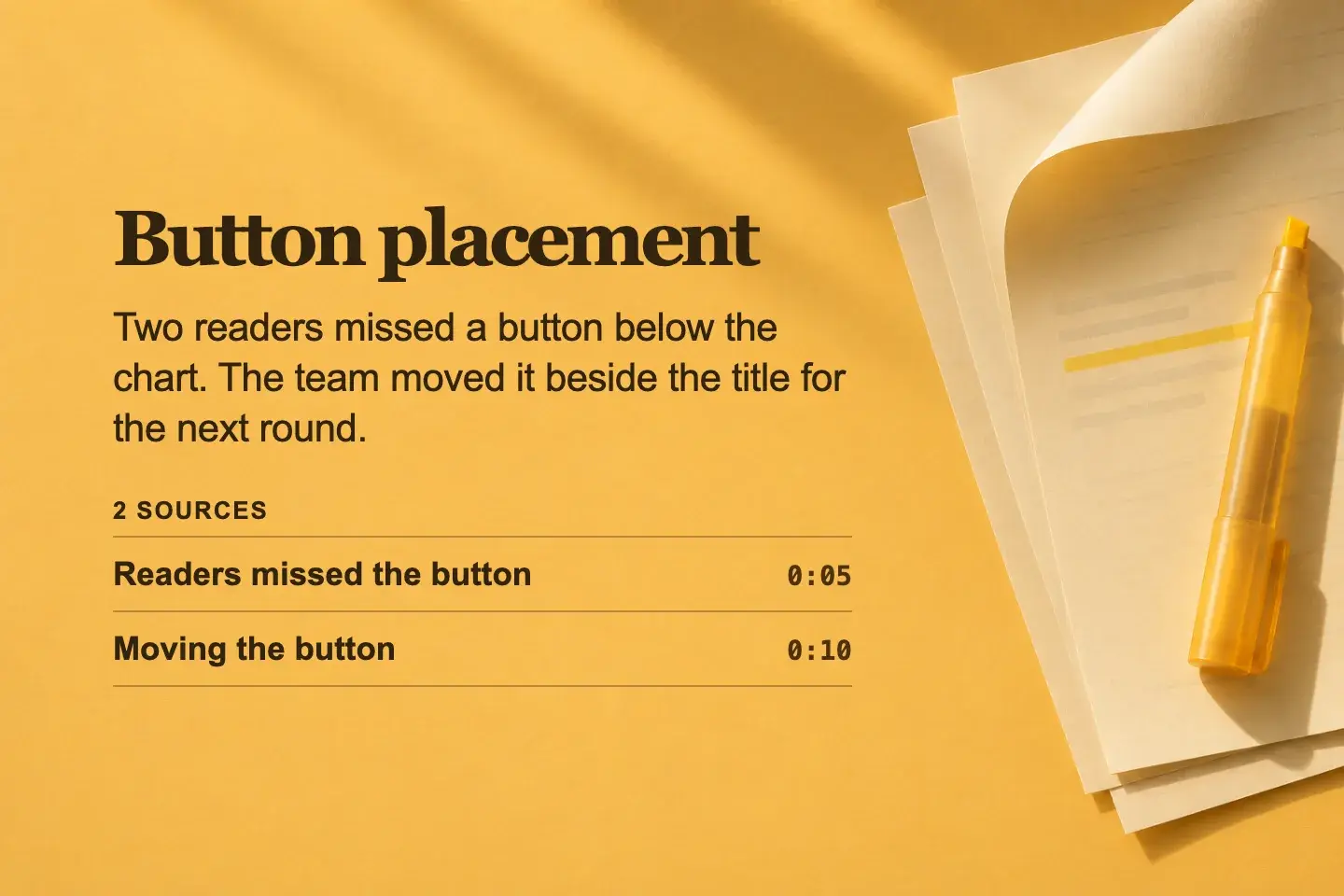
Read the summary and follow its links to the original passages.
User reviews
Illustrative examples
The timestamp went into the show notes
When I pull a line for the show notes, I keep its timestamp next to it. That gives my co-host a quick way to check the quote.
Jonah ReyesPodcast producerI checked the published episode
We shortened the intro after recording. Before posting the show notes, I checked that the timestamp still lands on the right line in the finished episode.
Sofia CostaPodcast editorListeners can read along
I reviewed the guest names and added the plain text transcript to the episode page for people who wanted a reading copy.
Lina ChoPodcast publisherThe post uses the words the host actually said
I picked a line for the episode post and replayed the surrounding exchange. It helped me trim the quote without changing its meaning.
Noel CostaPodcast marketerThe guest could find the line I sent
I sent the guest the quote with its timestamp. We could both check it against the episode before the post went live.
Ari NakamuraPodcast coordinatorWe had a place to start the chapter notes
I used the transcript to find where the topic changed. I replayed the break and added the checked time to our chapter notes.
Emilia HughesAudio producer

Frequently asked questions
- Can I paste an Apple Podcasts URL into HearDraft?
- Use an episode audio file you can access. For a transcript that the platform already offers, open it in Apple Podcasts.
- How can I cite a quote from the episode?
- Use the published episode audio so the timestamp matches the episode a reader can play. Check the quote against that timestamp before you cite it.
- What if the Transcript button is unavailable?
- Check whether the publisher provides a transcript. If you have an episode audio file you can use, upload it to create an editable copy.
- What does Unlimited include?
- Starter and Team previews list unlimited transcriptions and up to 10 hours per recording. Checkout is in test mode. Compare plans.
- How large or long can my file be?
- Free includes 3 transcriptions a day, up to 10 minutes and 100 MB per recording.
- Where can I find the refund and cancellation rules?
- See Refunds and cancellation for the current checkout status.